This screen help you to customize your case screen for agents or customers based on your business requirements by adding new custom fields , hide default fields, change field labels and mark optional/mandatory fields.
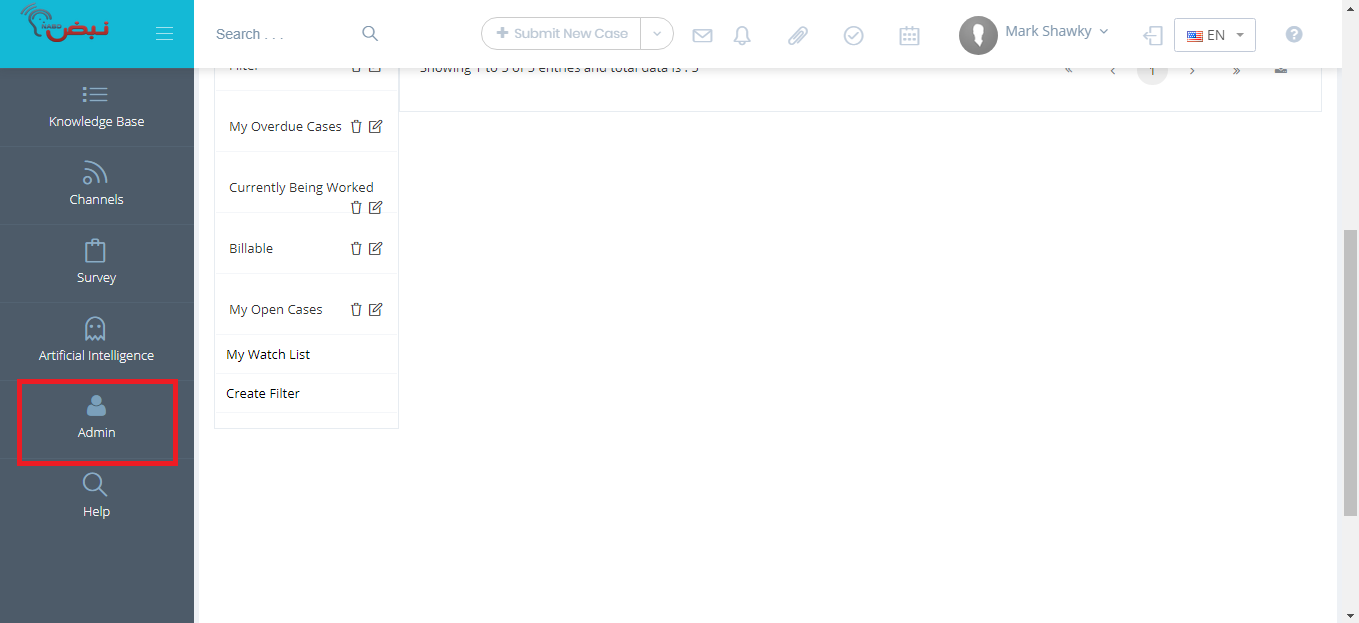
From your left main menu, select
Admin.
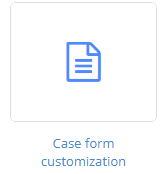
From Configuration section, select Case form customization.
Select Agent application to customize case screen for agents, Select Portal application to customize case screen for customers.

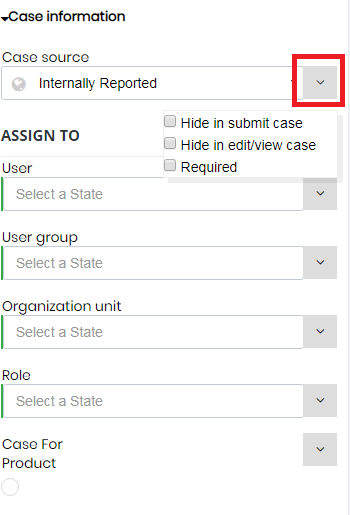
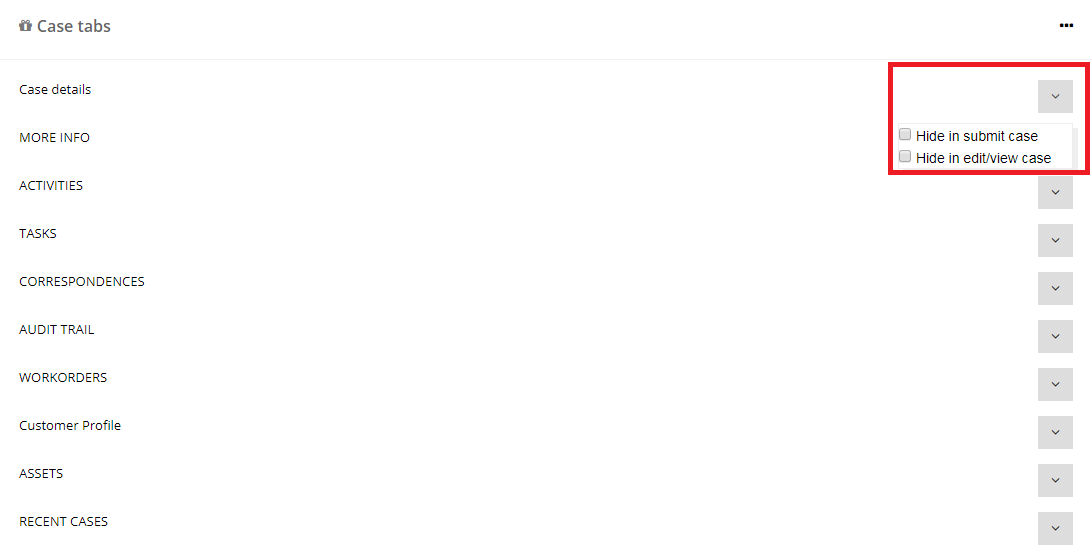
Pressing down arrow on any field to mark it as a mandatory or hide this field in submit or edit/view case screen.

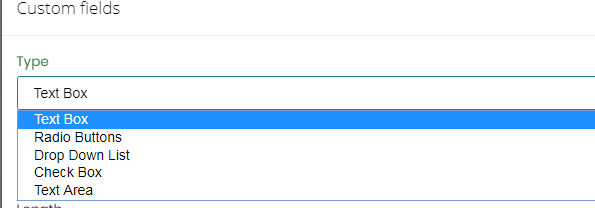
You will get this popup so you can enter the new custom fields properties like "type ,label name ,length ,data type ,required ,hide ,display in customer portal"
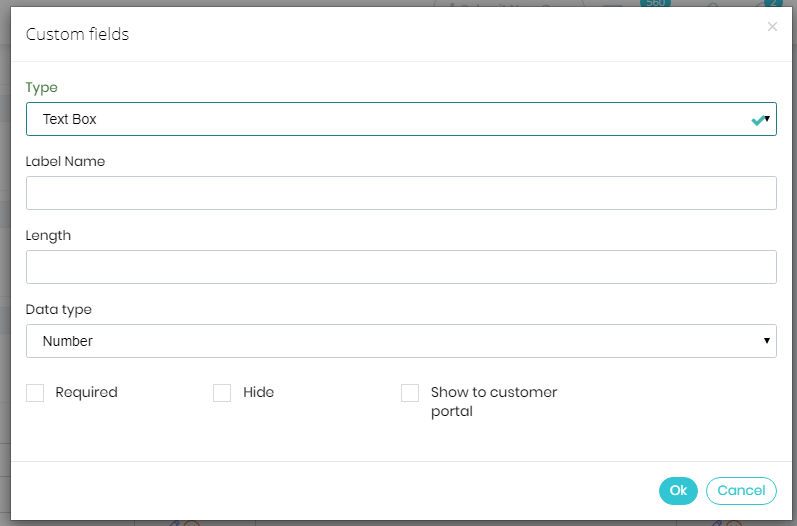
Custom fields types
You can add new submit case forms or set new rules applied during runtime on submit case screens and edit case using conditional forms customization

To add new conditional form click on add icon

You will get this popup
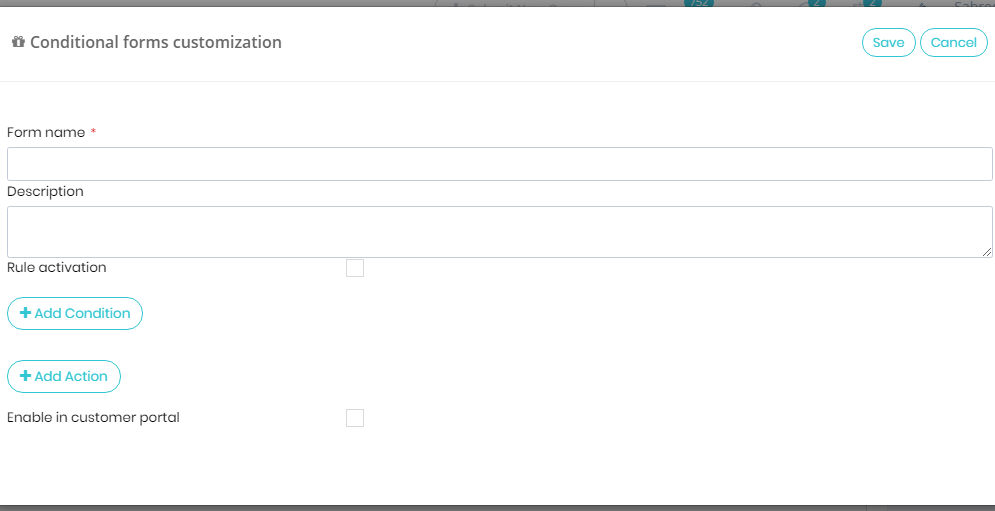
You can enter new conditions by clicking on add condition

you can enter new actions by clicking on Add actions
and show ,hide fields and enable or disable these fields based on these conditions you select.

You can apply these actions on customer portal if you check this option
